How to Securely Git Clone a GitHub Repository to AWS EC2 with SSH Deploy Keys
Author: Ferry Dermawan
Date:
Tags: aws, github, git, devops
If you are looking for a secure way to git clone a GitHub repository to EC2 for production, the best approach is to use read-only SSH deploy keys. In this guide, the scenario uses two different repositories on one AWS EC2 instance (example: englishnesia and studiku) with a clean and auditable setup.
Since GitHub allows one deploy key per repository, you need two SSH key pairs and two Host aliases in ~/.ssh/config. With this pattern, Git automatically uses the correct key for each repo, reduces credential leakage risk, and keeps deployments consistent.
You can still manage branches such as main and dev in each repository (fetch, checkout, or git worktree). If your instance is not ready yet, start with how to create an EC2 instance on AWS.
Table of contents
- Why use deploy keys to clone to EC2?
- What is an SSH deploy key in GitHub for EC2?
- Two repos on one EC2: keys and Host aliases
- Step-by-step: set up keys and clone two repositories
- How to manage
mainanddevbranches (per repo) + git worktree option - Production security best practices on EC2
- Conclusion
Why use deploy keys to clone to EC2?
Many setups still use tokens in URLs, store PATs in .env, or rely on one personal SSH key for multiple servers. In real production environments, this is risky because:
- A compromised server inherits the GitHub access scope of that credential
- It becomes harder to audit who can pull or push
- A leaked token can affect multiple repositories
Best recommendation: use a read-only SSH deploy key per repository to follow the least privilege principle without embedding personal GitHub account credentials on the server.
What is an SSH deploy key in GitHub for EC2?
A deploy key is an SSH key pair added in Settings → Deploy keys for one specific repository.
- It can be read-only
- It does not replace user account login for other repositories
- It is ideal for EC2 servers that only need
git pull/ clone
If you have many repositories and a large team, consider a GitHub App or a CI/CD pipeline. For cloning a few repositories on EC2 servers, deploy keys are still one of the simplest and safest options.
Two repos on one EC2: keys and Host aliases
| GitHub repo | Key file on EC2 | Host alias (example) |
|---|---|---|
YOUR_USERNAME/englishnesia |
~/.ssh/github_englishnesia |
github.com-englishnesia |
YOUR_USERNAME/studiku |
~/.ssh/github_studiku |
github.com-studiku |
Important: the first public key must only be registered to englishnesia; the second public key must only be registered to studiku. Do not swap them, or GitHub will reject access / route to the wrong repository.
Both blocks use HostName github.com and User git; the only differences are IdentityFile and the Host alias name so each clone URL uses the right identity:
git@github.com-englishnesia:USER/englishnesia.gitgit@github.com-studiku:USER/studiku.git
Step-by-step: set up keys and clone two repositories
1. Log in to EC2
ssh -i external.pem ubuntu@IP-EC2
Use a non-root user (for example ubuntu or deploy).
2. Create an SSH key for the first repo (englishnesia)
ssh-keygen -t ed25519 -C "deploy-englishnesia" -f ~/.ssh/github_englishnesia -N ""
3. Create an SSH key for the second repo (studiku)
ssh-keygen -t ed25519 -C "deploy-studiku" -f ~/.ssh/github_studiku -N ""
Generated files in ~/.ssh/:
github_englishnesia+.pubgithub_studiku+.pub
4. Set file permissions
chmod 700 ~/.ssh
chmod 600 ~/.ssh/github_englishnesia ~/.ssh/github_studiku
chmod 644 ~/.ssh/github_englishnesia.pub ~/.ssh/github_studiku.pub
5. Add public keys in GitHub (twice, one per repo)
echo "=== Public key for englishnesia repo ==="
cat ~/.ssh/github_englishnesia.pub
echo "=== Public key for studiku repo ==="
cat ~/.ssh/github_studiku.pub
For each repository: open Settings → Deploy keys → Add deploy key, paste the matching public key, and use titles such as EC2 — englishnesia and EC2 — studiku. Keep it read-only unless write access is truly required.
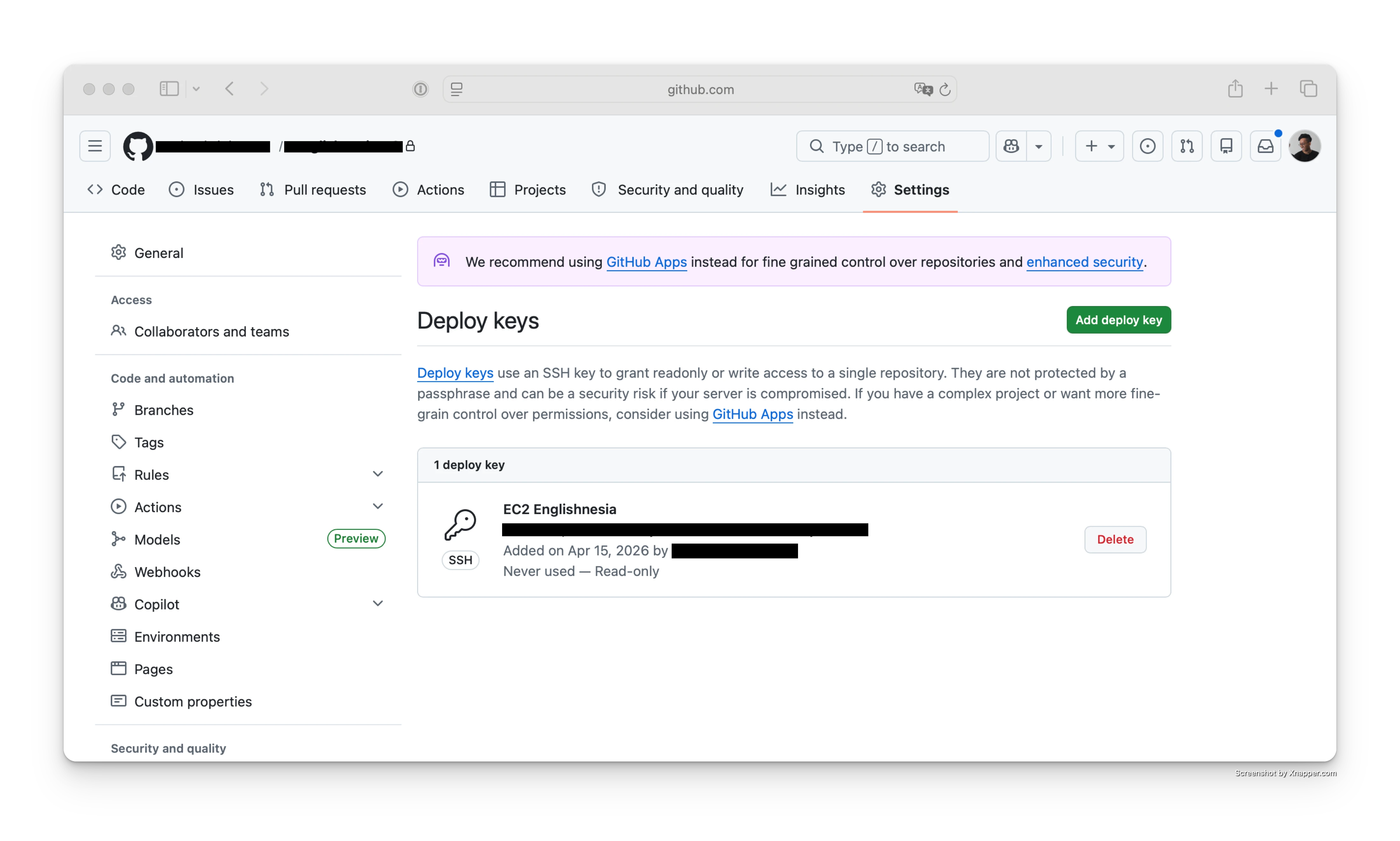 Screenshot: Add deploy key form in GitHub repository settings.
6. Use one ~/.ssh/config file for two Hosts
nano ~/.ssh/config
Host github.com-englishnesia
    HostName github.com
    User git
    IdentityFile ~/.ssh/github_englishnesia
    IdentitiesOnly yes

Host github.com-studiku
    HostName github.com
    User git
    IdentityFile ~/.ssh/github_studiku
    IdentitiesOnly yes
chmod 600 ~/.ssh/config
IdentitiesOnly yes prevents SSH from trying other keys, so connection to repo A does not accidentally use repo B's key.
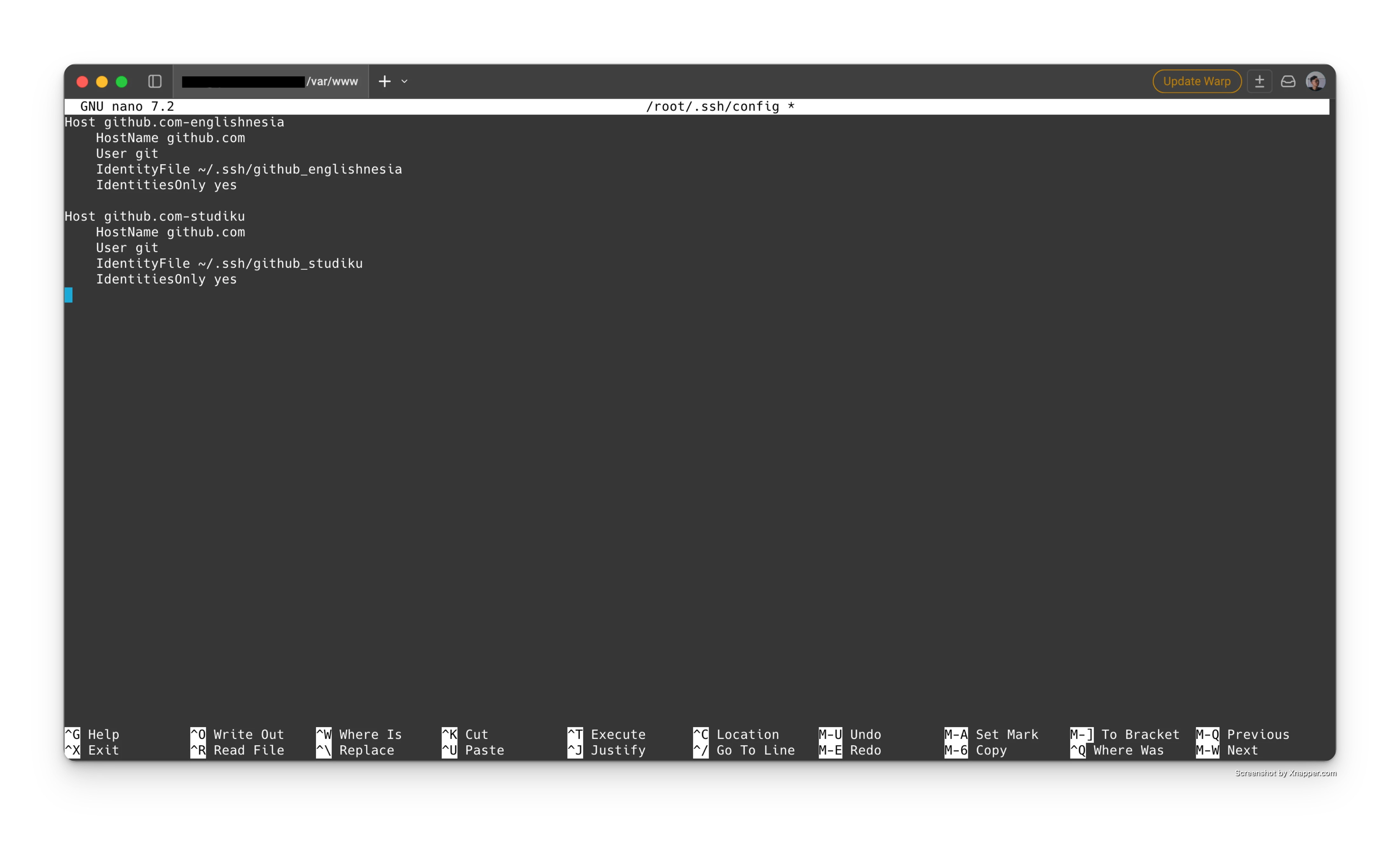 Screenshot:
 ~/.ssh/config with two Host aliases for two different repositories.
7. Test connection (optional)
ssh -T github.com-englishnesia
ssh -T github.com-studiku
8. Clone both repositories into /var/www (replace YOUR_USERNAME)
cd /var/www
git clone --branch main --single-branch git@github.com-englishnesia:YOUR_USERNAME/englishnesia.git englishnesia.id
git clone --branch dev --single-branch git@github.com-studiku:YOUR_USERNAME/studiku.git dev.studiku.id
With this setup, englishnesia is in /var/www/englishnesia.id (only main), and studiku is in /var/www/dev.studiku.id (only dev) based on your project naming convention, without storing PATs on the server.
How to manage main and dev branches (per repo)
Keep one working directory per target branch to make rollback and deployment automation safer:
cd /var/www/englishnesia.id
git branch --show-current
# expected output: main
cd /var/www/dev.studiku.id
git branch --show-current
# expected output: dev
If you need another branch later, run git fetch origin and git checkout <branch> in that specific directory.
Production security best practices on EC2
Restrict SSH access in Security Group
Avoid open SSH access from 0.0.0.0/0; restrict SSH with office IPs, VPN, or Session Manager whenever possible.
Keep deploy keys read-only
Enable write access only when the server must push to GitHub. For pull-only deployments, read-only keys reduce risk significantly.
Minimize PAT usage on servers
If HTTPS is unavoidable, use a fine-grained PAT with minimum scope and short lifetime. For EC2 clone/pull workflows, prefer SSH deploy keys.
Rotate and audit keys regularly
Remove old deploy keys that are no longer used, and review repository deploy key lists periodically.
Laravel writable directories permissions
For Laravel apps, avoid broad ownership changes on the whole project directory. It is usually enough to make only storage and bootstrap/cache writable:
sudo chown -R www-data:www-data storage bootstrap/cache
sudo chmod -R 775 storage bootstrap/cache
Run the command from each Laravel project root (for example /var/www/englishnesia.id and /var/www/dev.englishnesia.id).
Conclusion
The safest way to git clone GitHub repositories to AWS EC2 is: one deploy key per repository, strict SSH file permissions, and clear Host alias mapping in ~/.ssh/config. This approach improves repository security, maintainability, and readiness for main and dev deployment workflows.
Bonus: quick script — two repos (englishnesia & studiku)
# Create key pairs for repo 1 and repo 2
ssh-keygen -t ed25519 -C "deploy-englishnesia" -f ~/.ssh/github_englishnesia -N ""
ssh-keygen -t ed25519 -C "deploy-studiku" -f ~/.ssh/github_studiku -N ""

chmod 700 ~/.ssh
chmod 600 ~/.ssh/github_englishnesia ~/.ssh/github_studiku
chmod 644 ~/.ssh/github_englishnesia.pub ~/.ssh/github_studiku.pub

cat ~/.ssh/github_englishnesia.pub
cat ~/.ssh/github_studiku.pub
# Register each public key in its matching repository Deploy keys settings

cat >> ~/.ssh/config <<'EOF'
Host github.com-englishnesia
    HostName github.com
    User git
    IdentityFile ~/.ssh/github_englishnesia
    IdentitiesOnly yes

Host github.com-studiku
    HostName github.com
    User git
    IdentityFile ~/.ssh/github_studiku
    IdentitiesOnly yes
EOF

chmod 600 ~/.ssh/config

ssh -T github.com-englishnesia
ssh -T github.com-studiku

cd /var/www
git clone --branch main --single-branch git@github.com-englishnesia:YOUR_USERNAME/englishnesia.git englishnesia.id
git clone --branch dev --single-branch git@github.com-studiku:YOUR_USERNAME/studiku.git dev.studiku.id

# Laravel writable directories (run inside each project root)
cd /var/www/englishnesia.id && sudo chown -R www-data:www-data storage bootstrap/cache && sudo chmod -R 775 storage bootstrap/cache
cd /var/www/dev.studiku.id && sudo chown -R www-data:www-data storage bootstrap/cache && sudo chmod -R 775 storage bootstrap/cache
Deployment from repository to VPS can continue with a similar pattern in deploy Laravel to VPS if your stack uses Laravel.